# Le tableau de bord de l'histoire
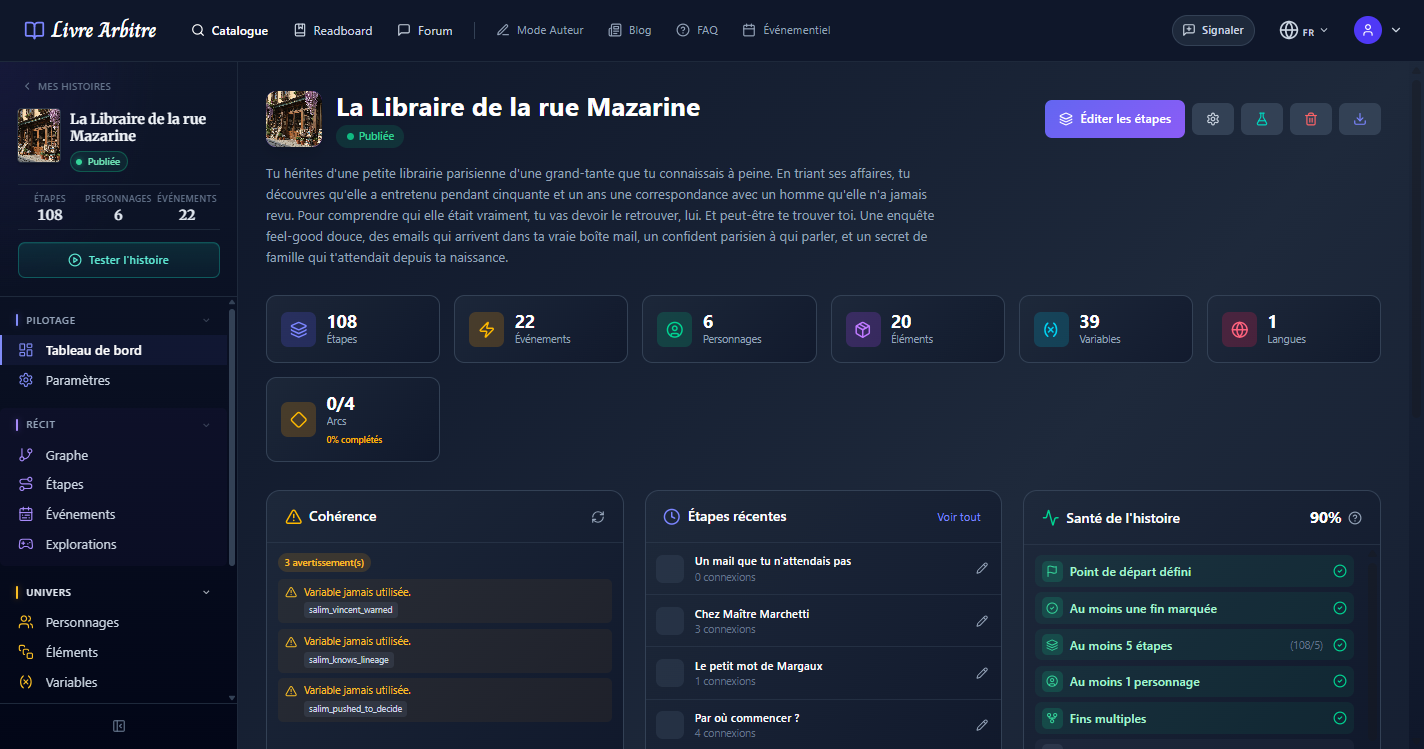
Le tableau de bord est la vue centrale de votre histoire. Il vous offre une vue d'ensemble complète de l'état de votre récit, avec des statistiques, des raccourcis vers les actions courantes et des indicateurs de santé. Vous y accédez automatiquement lorsque vous ouvrez une histoire en mode édition.
# Statistiques rapides
En haut du tableau de bord, des cartes de statistiques vous donnent un aperçu instantané de la richesse de votre histoire :
| Statistique | Description | Pourquoi c'est utile |
|---|---|---|
| Nombre d'étapes | Le nombre total d'étapes créées dans l'histoire | Indique la taille et la complexité de votre récit. |
| Nombre de personnages | Le nombre de personnages définis | Aide à suivre la richesse de votre univers. |
| Nombre d'éléments | Le nombre d'objets et éléments interactifs | Reflète la profondeur du système de jeu. |
| Nombre d'événements | Le nombre d'événements configurés | Montre le niveau d'interactivité de l'histoire. |
| Nombre de variables | Le nombre de variables et triggers | Indique la complexité de la logique narrative. |
# Actions rapides
Le tableau de bord propose des boutons d'action rapide pour accéder directement aux tâches les plus courantes sans passer par le menu latéral :
- Créer une étape — Ajoutez rapidement une nouvelle scène à votre histoire
- Voir le flow — Ouvrez la visualisation graphique de l'arborescence des étapes
- Tester l'histoire — Lancez une session de lecture de test pour vérifier le fonctionnement de votre récit
# Santé de l'histoire
Le tableau de bord intègre un système de validation et de santé qui analyse automatiquement votre histoire pour détecter d'éventuels problèmes :
- Étapes orphelines — Étapes non reliées au reste de l'arborescence
- Liens brisés — Références vers des étapes supprimées ou inexistantes
- Étape de départ manquante — Aucune étape n'est définie comme point de départ (IsHead)
- Chemins sans issue — Étapes qui ne mènent nulle part et ne sont pas des fins d'histoire
- Variables inutilisées — Variables définies mais jamais référencées dans les conditions
Résolvez les problèmes avant de publier

# Le menu de navigation latéral
Le menu latéral gauche est votre principal outil de navigation dans l'éditeur d'histoire. Il donne accès à toutes les sections de gestion :
| Section | Icône | Description |
|---|---|---|
| Étapes | GitBranch | Liste de toutes les étapes de l'histoire avec recherche et filtres |
| Flow des noeuds | Workflow | Visualisation graphique interactive de l'arborescence narrative |
| Événements | Bell | Gestion des événements déclenchés pendant la lecture |
| Personnages | Users | Création et édition des fiches personnages |
| Éléments | Package | Gestion des objets et éléments interactifs |
| Variables | Variable | Définition des variables et triggers de logique narrative |
| Classeur | FolderTree | Organisation des étapes en dossiers et sous-dossiers |
| Encyclopédie | BookOpen | Base de connaissances de l'univers de l'histoire |
| Explorations | Compass | Suivi des parcours de lecture et des chemins explorés |
Navigation rapide
# Activité récente
La section Activité récente affiche un historique des dernières modifications apportées à votre histoire. Vous pouvez y voir les étapes récemment créées ou modifiées, les personnages ajoutés et les changements de configuration. Cela vous permet de reprendre facilement là où vous vous êtes arrêté.