# Le classeur : organisez votre histoire
Le classeur est un outil d'organisation qui vous permet de regrouper vos étapes en dossiers et sous-dossiers, à la manière d'un manuscrit traditionnel. Lorsque votre histoire grandit et que le nombre d'étapes augmente, le classeur devient indispensable pour garder une vue structurée de votre récit.
Un outil complémentaire au flow
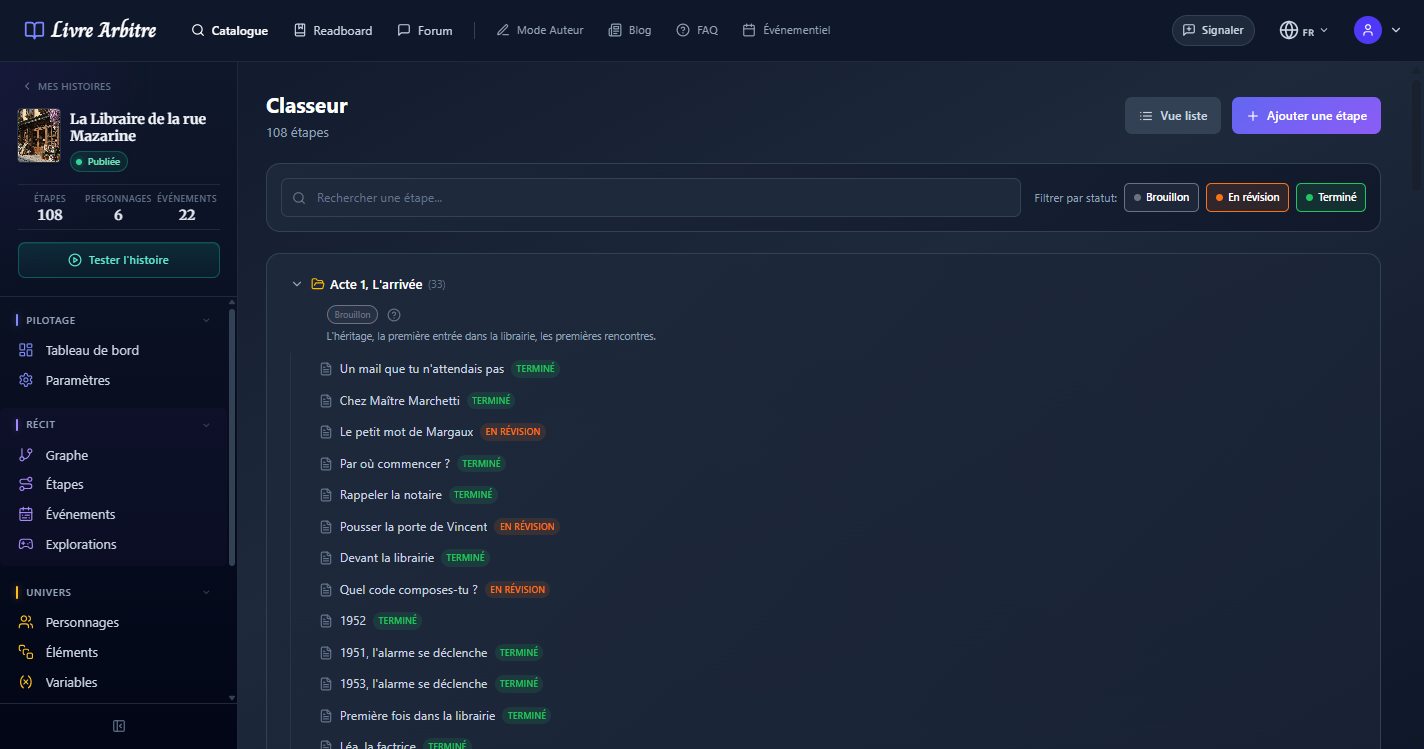
# Créer des dossiers et sous-dossiers
Accédez au classeur
Dans le menu latéral de votre histoire, cliquez sur "Classeur" pour ouvrir la vue d'organisation.
Créez un dossier
Cliquez sur le bouton "Nouveau dossier" et donnez-lui un nom descriptif (ex: "Chapitre 1", "Forêt enchantée", "Intrigue secondaire").
Ajoutez des sous-dossiers
Vous pouvez créer des sous-dossiers à l'intérieur d'un dossier pour affiner votre organisation. Par exemple : "Chapitre 1 > Scène d'introduction".
Déplacez des étapes
Glissez-déposez vos étapes depuis la liste vers les dossiers souhaités pour les organiser.
# Glisser-déposer des étapes
Le classeur supporte le glisser-déposer (drag and drop) pour réorganiser facilement vos étapes. Vous pouvez déplacer une étape d'un dossier à un autre, réordonner les étapes au sein d'un même dossier, ou les sortir d'un dossier pour les remettre à la racine.
Organisation libre
# Le système de labels
Le classeur s'appuie sur un système de labels puissant qui permet de catégoriser et filtrer vos étapes de multiples façons. Les labels sont des étiquettes que vous attachez aux étapes pour les identifier rapidement.
| Type de label | Format | Exemples | Utilisation |
|---|---|---|---|
| Dossier | folder:nom | folder:chapitre-1, folder:epilogue | Assigne l'étape à un dossier dans le classeur. Une étape peut avoir plusieurs labels de dossier. |
| Statut | status:valeur | status:draft, status:review, status:done | Indique l'état d'avancement de la rédaction de l'étape. |
| Couleur | Nom de couleur | rouge, bleu, vert, jaune | Code couleur visuel pour identifier rapidement les étapes par thème ou priorité. |
| Joueur | player:numéro | player:1, player:2 | En mode multijoueur, identifie le joueur concerné par cette étape. |
Labels multiples
# Filtrer et trier dans le classeur
Le classeur offre des outils de filtrage et de tri pour naviguer efficacement dans vos étapes, même lorsque votre histoire en contient des dizaines :
- Filtre par dossier — Affichez uniquement les étapes d'un dossier spécifique
- Filtre par label — Filtrez par statut, couleur ou joueur pour retrouver rapidement un ensemble d'étapes
- Recherche textuelle — Recherchez dans les titres et descriptions des étapes
- Tri par date — Ordonnez les étapes par date de création ou de dernière modification
- Tri par nom — Classez les étapes par ordre alphabétique

# Étapes dans plusieurs dossiers
Une fonctionnalité unique du classeur est la possibilité de placer une même étape dans plusieurs dossiers. Cela est particulièrement utile lorsqu'une étape se situe à la croisée de plusieurs arcs narratifs ou chapitres.
- Une étape de rencontre entre deux personnages peut apparaître dans le dossier de chacun des personnages
- Une scène pivot peut figurer dans plusieurs chapitres si elle sert de transition
- Les étapes communes en mode multijoueur peuvent être classées dans les dossiers de chaque joueur