# Le système de labels
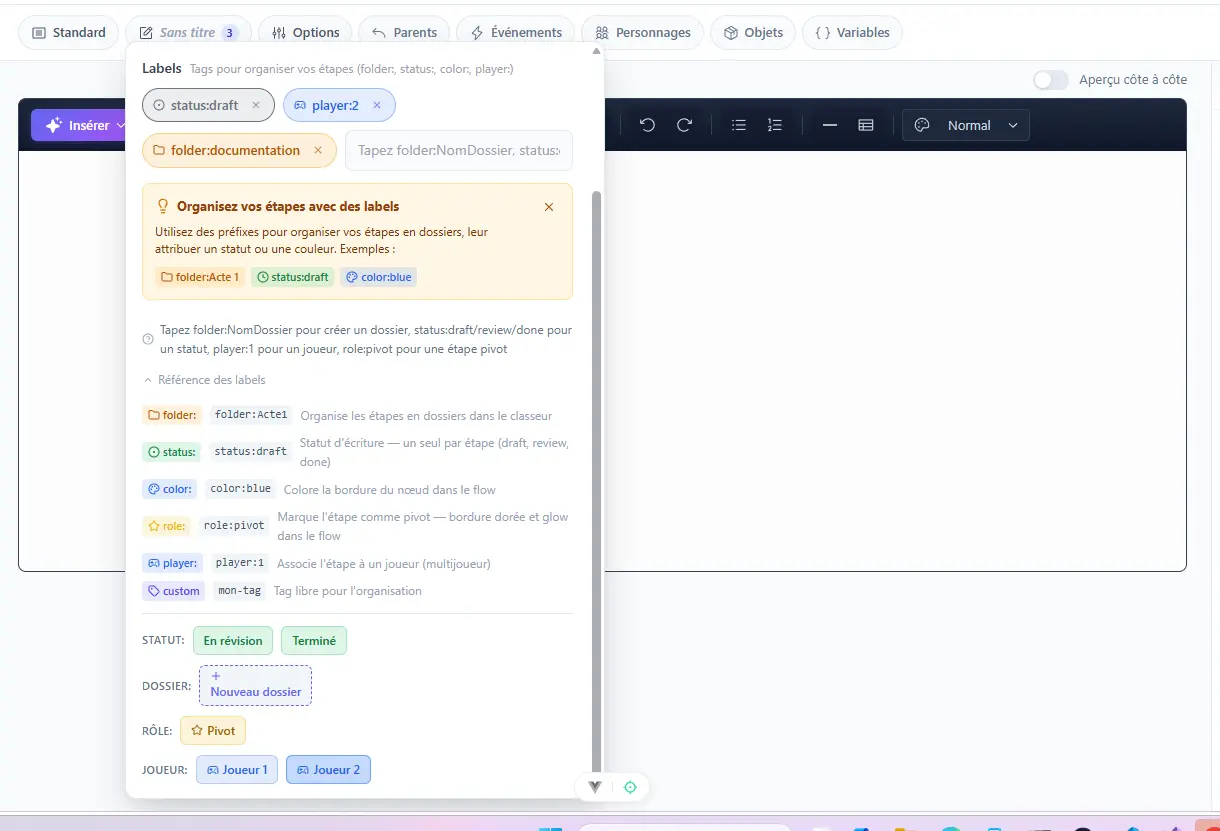
Les labels sont des étiquettes que vous pouvez attacher à vos étapes pour les organiser, les catégoriser et les retrouver facilement. Ils fonctionnent comme des tags flexibles qui vous aident à structurer votre histoire au fur et à mesure qu'elle grandit.
Pourquoi utiliser les labels ?
# Labels de statut
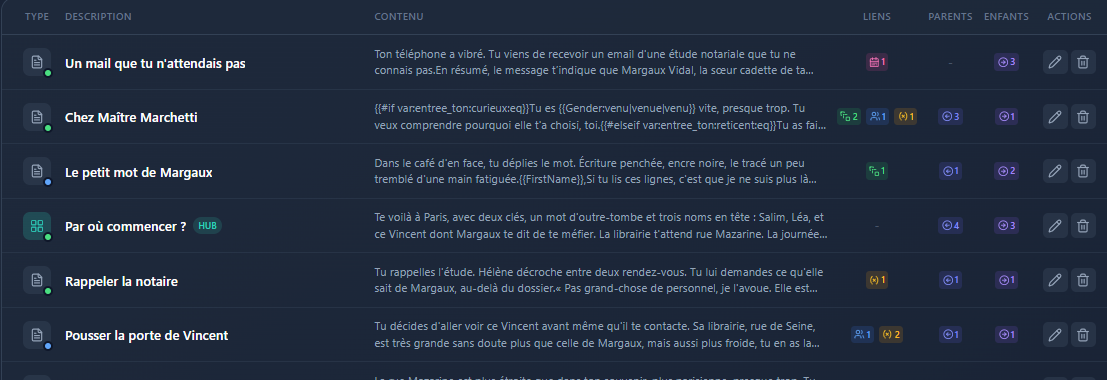
Les labels de statut permettent de suivre l'avancement de la rédaction de chaque étape. Ils utilisent le préfixe status: et s'affichent sous forme de petit cercle coloré à gauche de l'icône de type dans la liste des étapes, et sous forme de badge coloré dans le classeur.
- status:draft — Brouillon, l'étape est en cours de rédaction
- status:review — En relecture, l'étape attend une validation
- status:done — Terminée, l'étape est finalisée
# Labels de joueur
En mode multijoueur, les labels de joueur permettent d'identifier rapidement à quel joueur chaque étape est destinée. Ils utilisent le préfixe player: et s'affichent comme un badge texte à côté de la description dans la liste, et avec une icône de manette sur les nœuds du graphe.
- player:1 — Étape destinée au joueur 1 (l'hôte)
- player:2 — Étape destinée au joueur 2
- player:3, player:4... — Étapes pour les autres joueurs
# Labels de dossier
Les labels de dossier permettent de regrouper vos étapes par chapitre, acte ou toute autre organisation logique. Ils utilisent le préfixe folder: et sont exploités par le classeur pour construire l'arborescence de votre histoire. Ils apparaissent aussi sous forme d'icône dossier sur les nœuds du graphe. Ils ne s'affichent pas dans la liste des étapes.
- folder:chapter1 — Regroupe les étapes du chapitre 1
- folder:chapter2 — Regroupe les étapes du chapitre 2
- folder:prologue — Regroupe les étapes du prologue
# Labels de couleur
Les labels de couleur offrent une catégorisation visuelle rapide. Ils utilisent le préfixe color: (par exemple color:red, color:blue). Ils apparaissent sous forme de petit point coloré dans le classeur et comme bordure gauche colorée sur les nœuds du graphe. Ils ne sont pas visibles dans la liste des étapes.
# Labels personnalisés
Au-delà des labels prédéfinis, vous pouvez créer n'importe quel label personnalisé pour répondre à vos besoins spécifiques. Ces tags libres s'affichent sur les nœuds du graphe sous forme d'étiquette textuelle, et restent disponibles en interne pour vos recherches et pour documenter votre intention.
Exemples de labels personnalisés
# Où les labels s'affichent
Chaque vue affiche les labels différemment selon le type d'information qu'elle met en avant :
- Liste des étapes — Les labels
status:apparaissent comme un cercle coloré à côté de l'icône du type, et les labelsplayer:(mode multijoueur) comme un badge texte à côté de la description. Les autres types ne sont pas affichés ici. - Classeur — Les labels
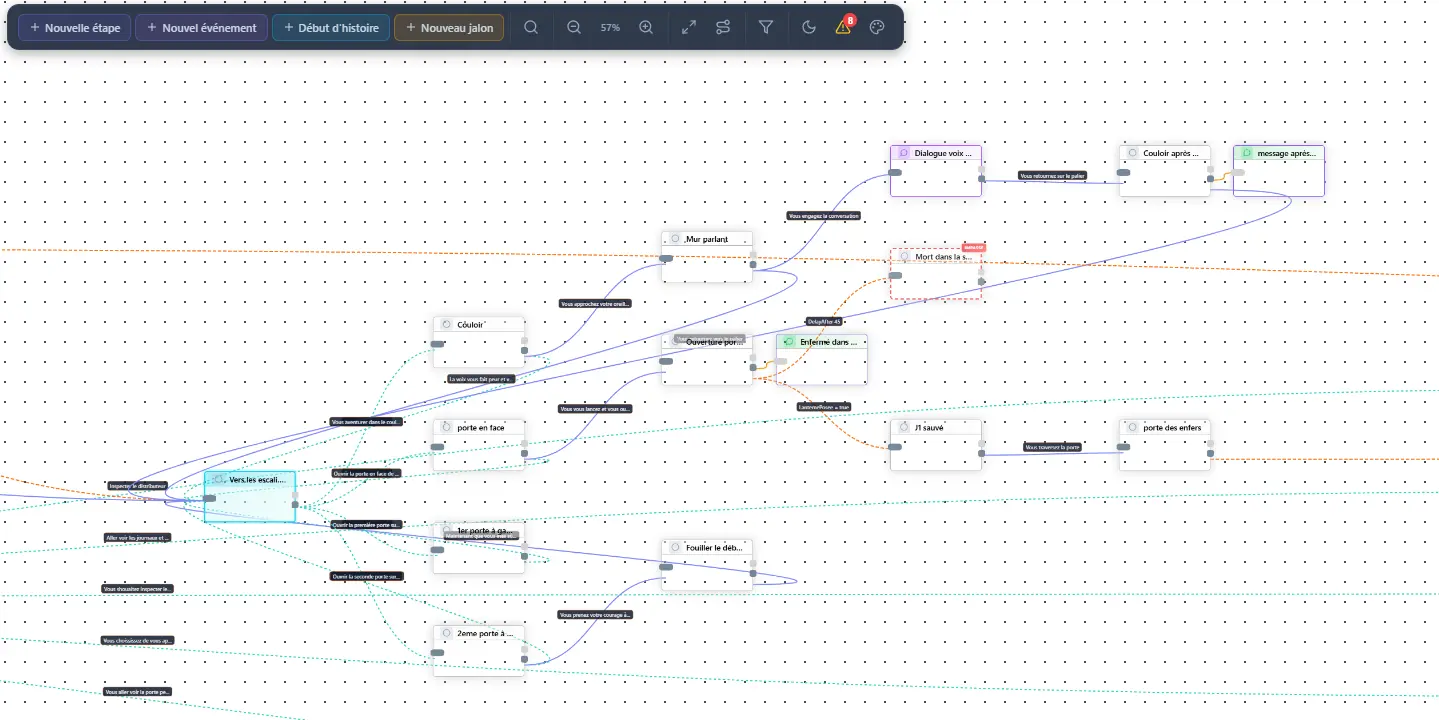
folder:structurent l'arborescence,status:apparaissent en badges colorés etcolor:en petits points à côté de la description. - Visualisation du graphe — Tous les types de labels sont visibles sur les nœuds :
status:en tag coloré,folder:avec une icône dossier,player:avec une icône manette,color:en bordure gauche colorée, et les labels personnalisés en étiquette textuelle.
# Filtrer les étapes par labels
Plusieurs vues proposent un filtrage des étapes selon leurs labels :
- Liste des étapes — Filtrage par joueur (
player:) en mode multijoueur. - Classeur — Filtrage par statut (
status:draft,review,done). - Graphe — Filtrage par joueur disponible dans la vue flow.
