# Créer une nouvelle étape
1
Double-clic sur le canvas
Cliquez deux fois rapidement sur une zone vide pour créer un nouveau nœud à cet emplacement.
2
Remplissez la modale
Donnez un titre et un contenu à votre nouvelle étape.
3
Sauvegardez
Cliquez sur "Sauvegarder" pour créer l'étape et l'ajouter au graphe.
Alternative rapide
# Connecter des étapes
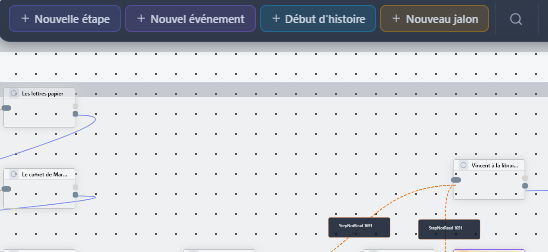
Pour créer un lien entre deux étapes :
1
Trouvez le point de sortie
Repérez le petit cercle en bas du nœud source.
2
Glissez vers la cible
Cliquez et maintenez sur le point de sortie, puis glissez vers le point d'entrée (en haut) du nœud cible.
3
Définissez le texte du lien
Une modale s'ouvre pour vous permettre de définir le texte du choix que verra le lecteur.
# Modifier une étape
Plusieurs méthodes pour éditer une étape existante :
- Double-clic sur le nœud — Ouvre l'éditeur complet
- Clic simple puis bouton "Éditer" — Dans le panneau latéral
- Clic droit → "Modifier" — Menu contextuel
# Supprimer des éléments
Attention
- Supprimer un nœud — Sélectionnez-le et appuyez sur "Suppr" ou utilisez le menu contextuel
- Supprimer une connexion — Cliquez sur la ligne de connexion puis sur l'icône corbeille
# Réorganiser le graphe
Vous pouvez glisser-déposer les nœuds pour réorganiser visuellement votre graphe. Les connexions suivent automatiquement.